Summary:
This technical note describes how to resolve Windows 95's Dial-Up Networking Error #645, Internal Authentication Error.
Details:
If you receive this error, Dial-Up Networking has somehow become corrupted.NOTE: If you remove Dial-Up Networking only by going to the Network Control Panel and removing it through that system, the error will not be resolved The problem is that when the Dial-Up Adapter is removed through this method, the system does not delete currently installed files. The way to get Windows 95 to delete the Dial-Up Networking files is to remove it through the Add/Remove Software control panel application.To remove Dial-Up Networking, perform the following steps:1. Click on the
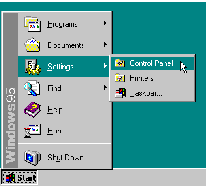
Menu
2. Click on the Settings Menu
Figure 1: Displaying the Settings Sub-Menu 3. Select Control Panel icon
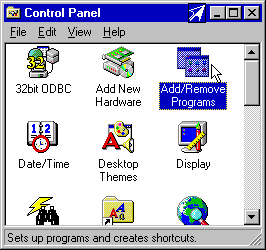
4. Double-Click on the Add/Remove Programs Control Panel Application
Figure 2: Entering Add/Remove Programs 5. Click on the Tab Labelled "Windows Setup"
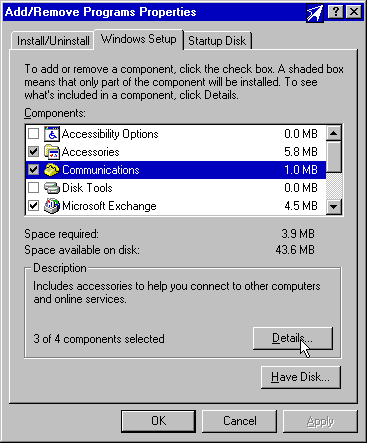
6. Select the icon labelled "Communications" and click on the "Details" Button
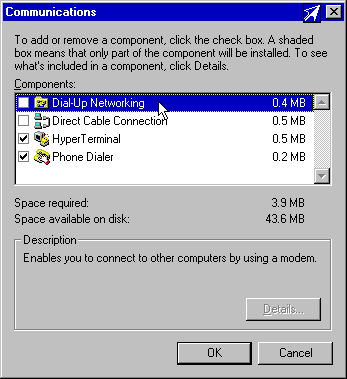
Figure 3: Windows Setup Tab 7. Clear the check box labelled "Dial-Up Networking"
Figure 4: Settings to Uninstall Dial-Up Networking 8. Click all the OK buttons to close all of the windows. You will need to reboot Windows for all changes to take affect.
9. The removal of Dial-Up Networking is now complete. To re-install the Dial-Up Adapter manually, follow the directions in Tech Note #1501.